
This User’s Guide describes several Home screen features that are active only on the days of the tournament for which a player signed up. The features are:
- Directions to the venue using Google Maps
- Check-in and communication of status
- Schedule of events, matches and score entry
- Draws
- Results of all matches played by a player
Before these features can be accessed users must first log in. To make logging in easier, we recommend the following:
- Add a shortcut to ttAurora website i.e. https://ttaurora.com to your phone’s home screen. Many times players arrive at the tournament and start looking for the website address on Google. Save yourself the pain and make an icon launching the website. Both Android and iOS phones have this feature.
- Make the phone remember the email address and password you used to login. Many players forget the password and start their tournament with a ‘Reset password’ procedure. Please, test the above link and logging in before you arrive at the tournament.
- If you have an older 3G or 4G phone, the ttAurora website may load slowly. There is a free public Wi-Fi in the venue called ‘FVPD Guest‘. Connect to it via your phone’s Settings and the website will work faster.
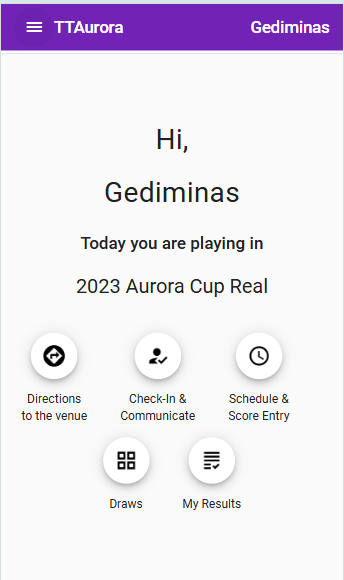
Directions to Venue
On the day of the tournament you will get easy access to directions to the venue. No need to remember the address anymore. (There were instances where players went to the wrong venue for one of my tournaments). Press Directions and you will be taken to Google Maps app.
Check-in / Communicate
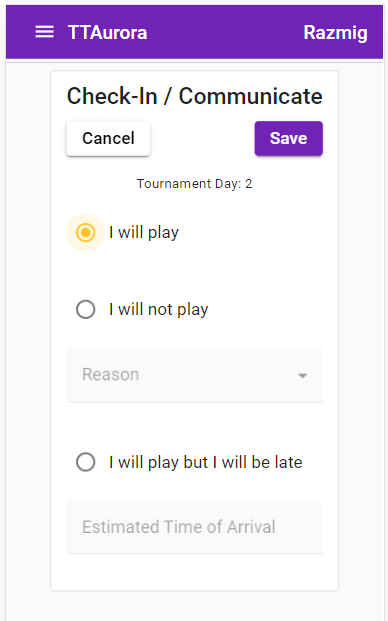
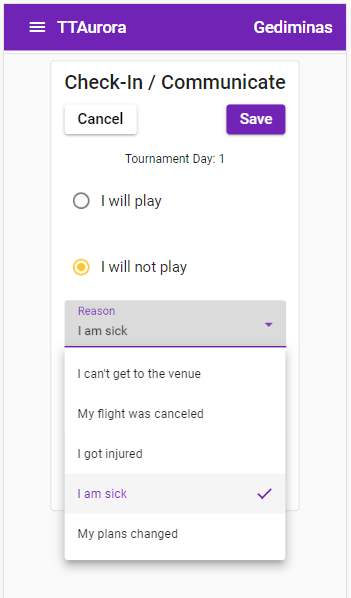
This screen is used primarily for check-in, but if you are unable to play for some reason or will be late you can also use it to communicate this to players. You can also communicate your injury or other reasons for withdrawing from the later days/rounds of the tournament. THIS IS NOT a substitute for signing an USATT waiver form.
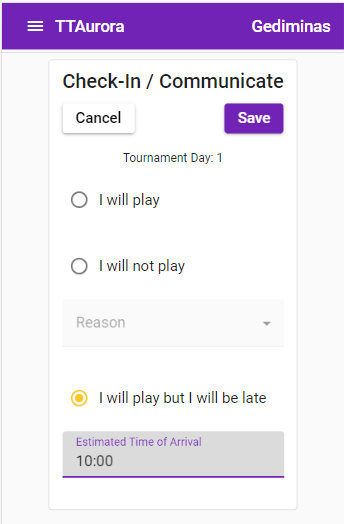
Or indicate that you will be late so they don’t default you and play until you arrive.
This status will be made available on the match card summary screen where you see all players from your group. You will no longer need to go to the control desk to inquire about player’s status. You will see later how to navigate to this screen.
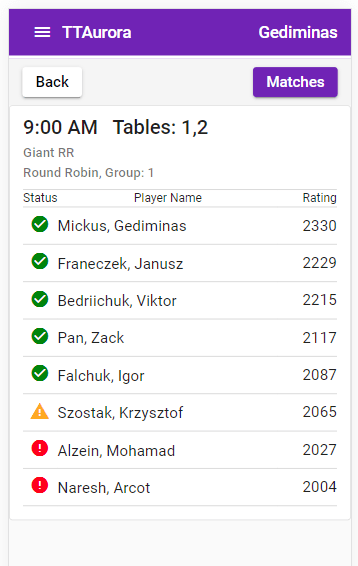
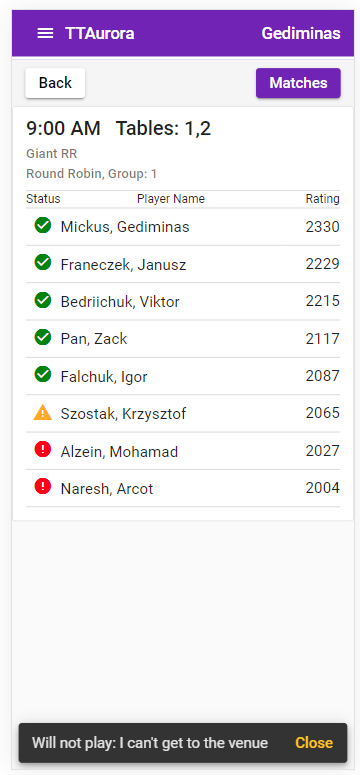
Tapping on the colored icon on the left of the player name will display a toast on the bottom showing the reason for absence.
- Black icon with ? – indicates that player has not checked in.
- Green icon – checked in
- Yellow icon – will play but will be late. Tap it to find out how late
- Red icon – will not play. Tap it if you are curious why.
Schedule / Score Entry
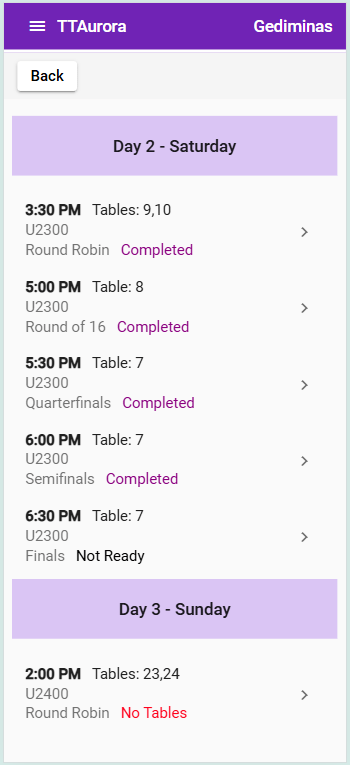
Each player will now have access to his/her own schedule of matches for each day. Matches in the later rounds will be added to this screen. Press the right arrow to see match card & player status screen.
The list represents match cards ( some with multiple matches) and their status. The possible statuses are: Not Ready – one of the players has not been determined.
No Tables – match is ready but tables are not available or not assigned
Started – The match has been assigned tables and play can start
In Progress – At least one score has been entered in any match.
Completed – all matches on the match card were completed
Press ‘Matches’ to go to match list screen, which displays all matches on the match card.
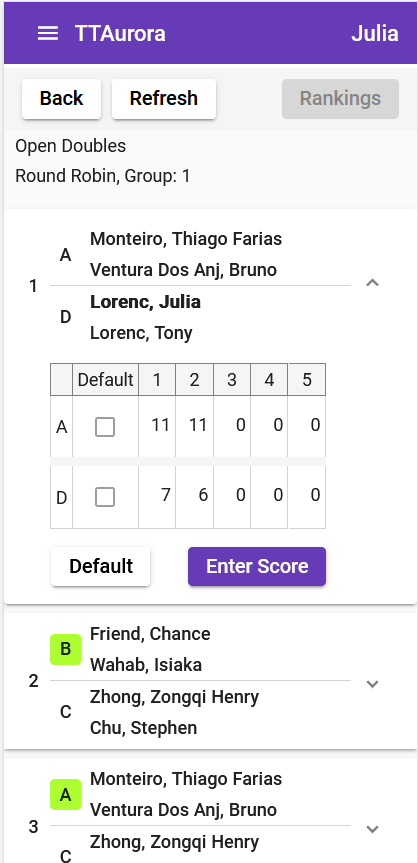
Matches in which you are a participant are shown in bold. Only one player can enter scores so the players have to agree on who will do that. Once this is determined, the other player can’t enter scores. If need arises to change that, i.e. your phone battery is exhausted, you will need to go to the control desk to have the match reset. Score entry is allowed under the following conditions:
- The event / match has been started by control desk personnel
- You are checked in
- The other player didn’t start entering the score
- The match card is not completed. Once it is, the match card is marked as completed. Any mistakes should be corrected by control desk personnel.
Press ‘Enter Score’ to navigate to the match entry screen.
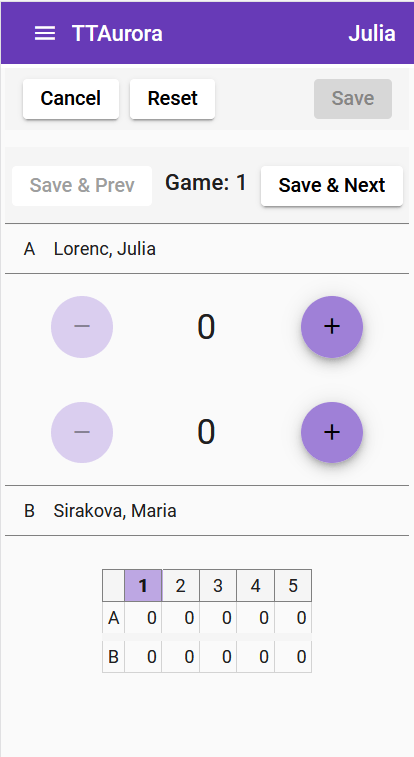
Once on this screen, there is a one time message in a toast at the top of the screen explaining how to enter scores. To enter score, first press the name of the winning player (or a ‘+’ button near his name) and then adjust the other player’s score with ‘+’ or ‘-‘ button. Press ‘Save & Next’ button to save this game’s score and move to the next game. Play the game and repeat score entry. If you need to correct a previous game score use the ‘Save & Prev’ button. If you need to start this game score again, press Reset and repeat score entry. When all games are finished one player will be indicated as winner in green. Press Save to save the match and leave this screen.

If you press Save before all games are entered, you can get back to score entry screen via ‘Enter score’ button. The score entry screen automatically navigates to the next game which needs be entered.
Defaulting a player is done on the match list screen by tapping on the ‘Default’ button which brings up a dialog asking which player should be defaulted. If some games scores were already entered, the system ask user if these scores should be erased before proceeding with default.
Winning player code letter is highlighted in green upon match completion.
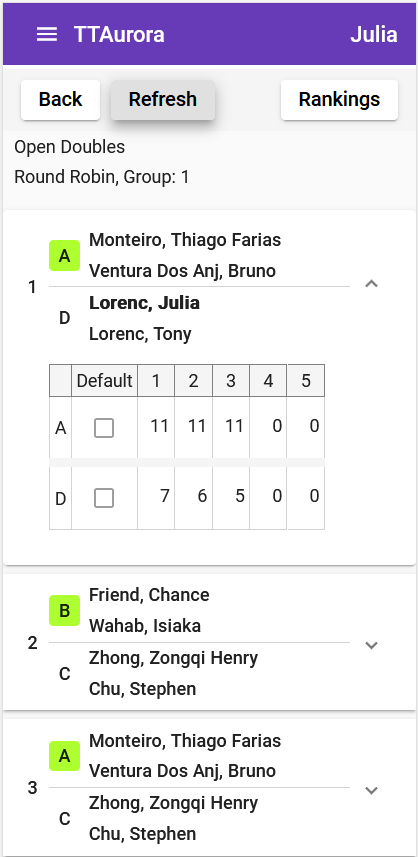
Matches can be expanded/collapsed to reveal match scores.
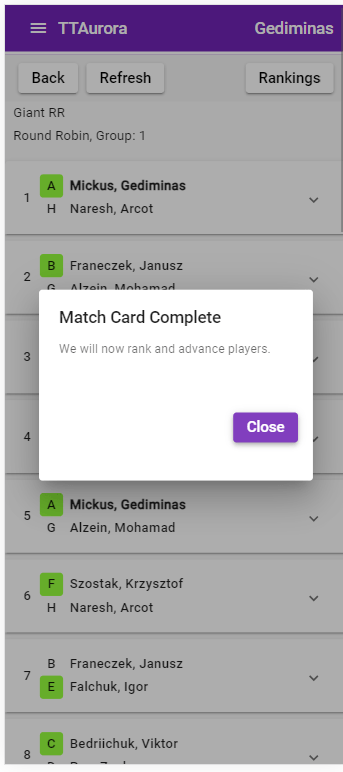
Once all matches are completed the group rankings will be automatically computed, unless there were some matches where both players are missing. In that case you will need to notify control desk of the missing players so they will default them. Here is what you will see when the last match is entered i.e. match card is complete.
Draws
These screens are for those who are curious about the entire draw. You can see all draws of all events. After pressing Draws button you will arrive on the event list screen.
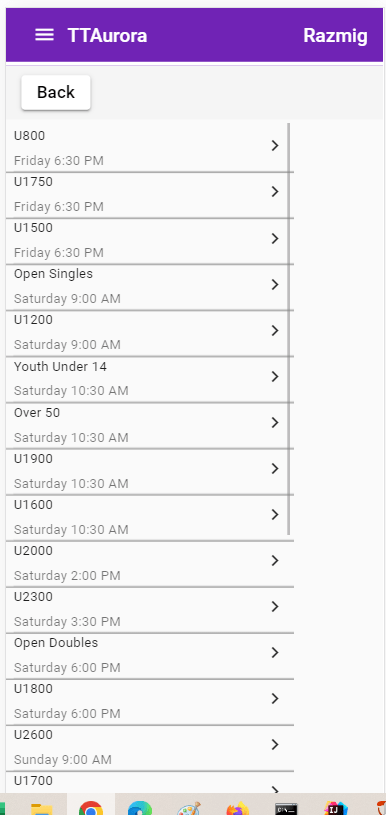
Tap the right arrow to see draws for a selected event.
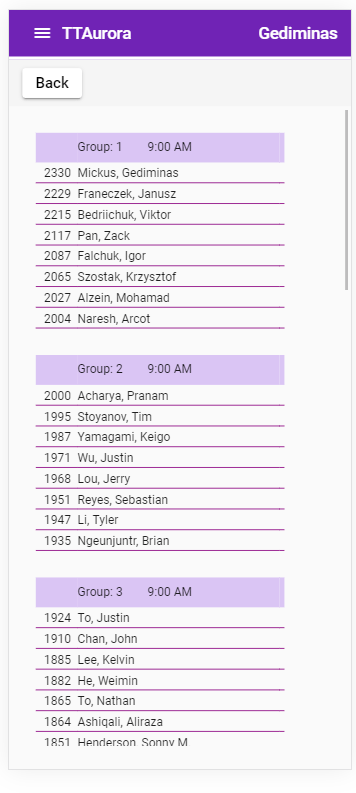
If the event has round robin and single elimination rounds you can see both draws by switching between the ‘Round Robin’ and ‘Single Elim’. tabs.
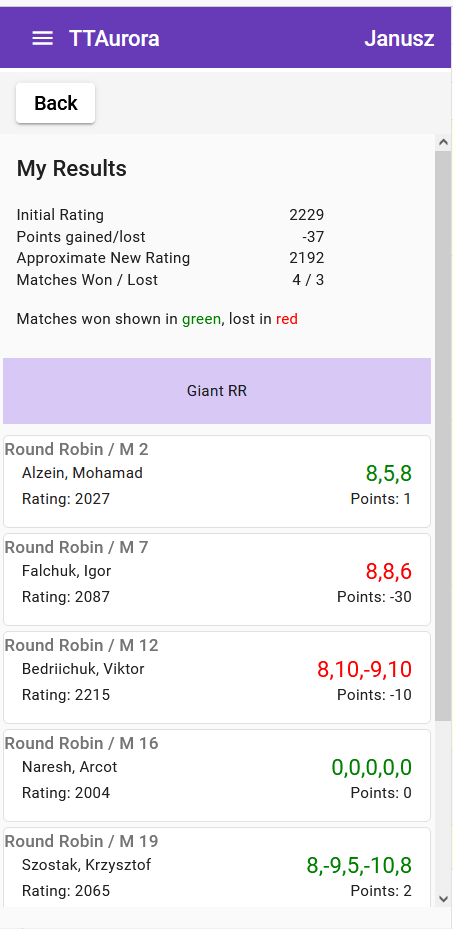
My Results
This screen lists all matches you played in all events and approximate rating point gain or loss. This is not a full USATT ratings process so for example there are no adjustments made to this rating. This screen allows you to spot score entry mistakes and alert control desk to correct it before results are sent to USATT for processing.
 fvttc.org