
This page is intended to help new users create an account, fill the USATT profile and register for a tournament using https://www.ttaurora.com website.
Account Creation
After arriving on home page click on CREATE button.
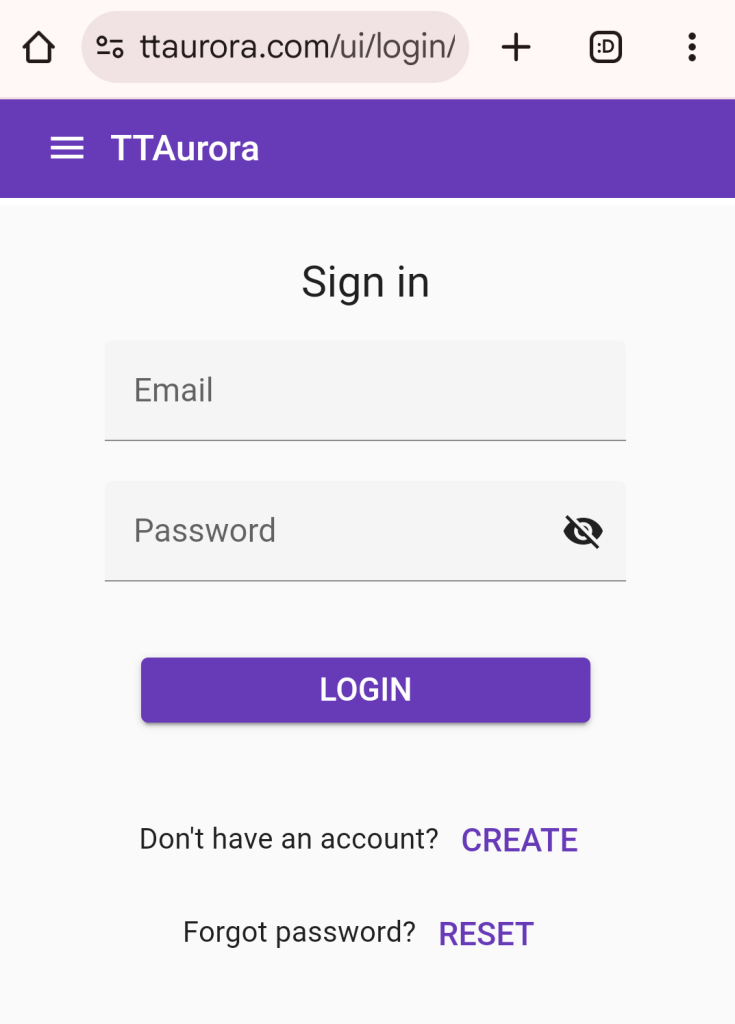
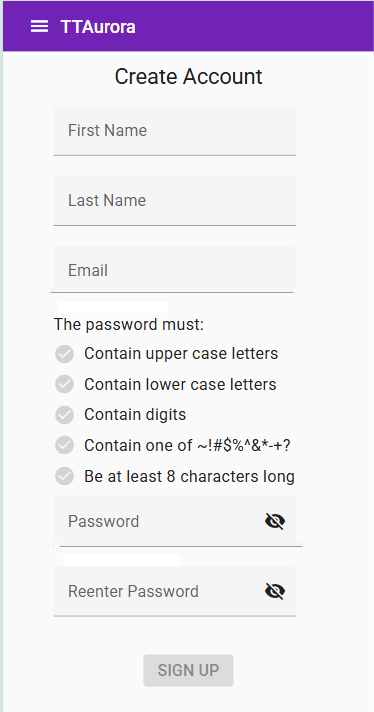
You should see the following screen. Fill out requested information making sure that your password follows the guidelines listed on this screen. Use the ‘crossed eye’ button to reveal the password if you can’t match them.
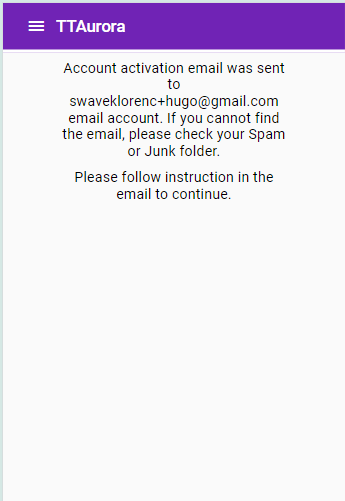
If you are successful, you should see this screen. Go to your email and look for the email from Okta with a title – Welcome to TTAurora!. Check your spam email folder if you don’t see it or give it a minute or so.
The email should be from Okta and look like this:
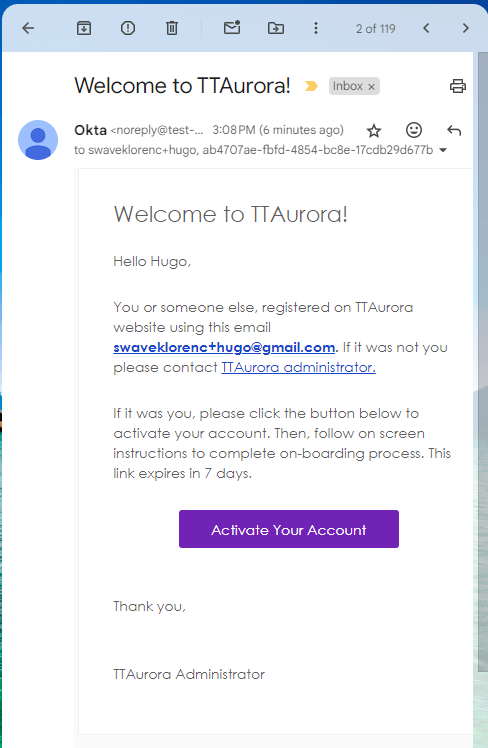
Click on the purple ‘Activate Your Account’ button in the email and it should bring you back to the following screen on ttaurora.com website.
If the Activate Your Account button doesn’t open ttAurora website, make sure that the email is not in Spam folder. Some systems ignore clicks in spam email, so you need to move this email from Spam to Inbox before the button will be considered OK to click on.
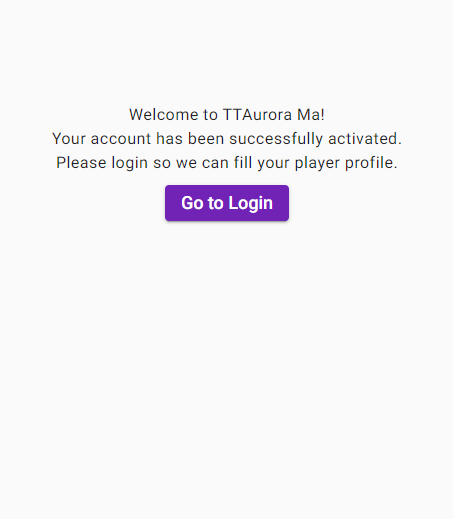
Click ‘Go to Login’ button and it will bring you to the Login screen. Log in using your email and password and you will be forwarded to a profile creation start page shown below.
Profile Creation
If you have USATT membership already and this is your record press ‘Go to Profile’ button. If your name is very common you may need to find it using Find by Name or Find by Id buttons. If you don’t have USATT membership just press Go to Profile.
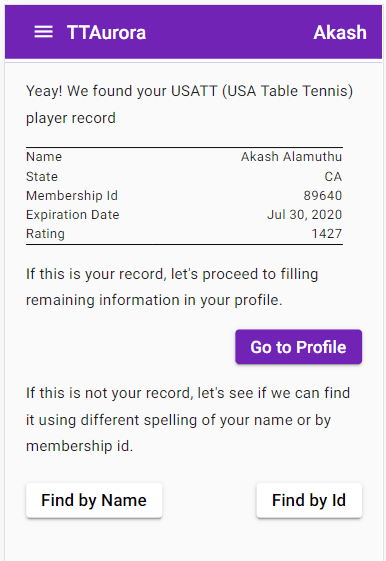
After you press Go to Profile you will arrive at profile creation screen. You must fill ALL fields because they are either required by USATT or by tournament director / referee to make better draws or to contact you.
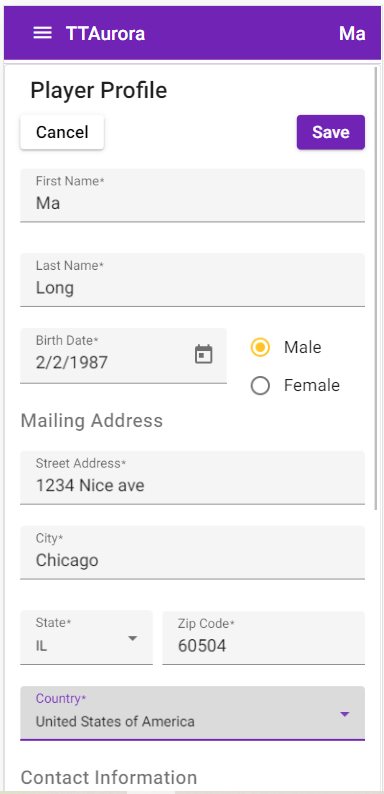
Once ALL fields of the profile are filled press Save and you should see this on-boarding complete screen.
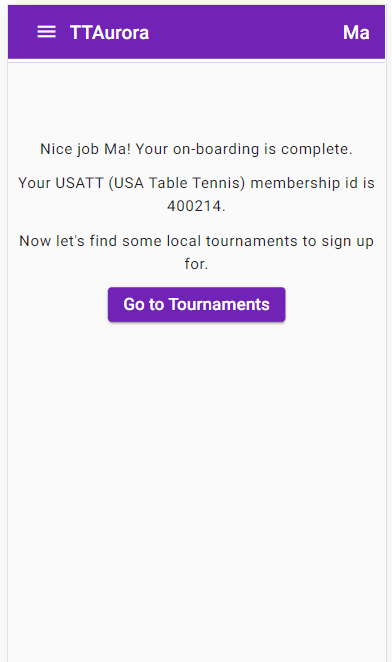
Now you are ready to go find a tournament to play in. Press Go to Tournaments and it will show you the list of tournaments in your region based on the state of your residence.
Tournament Registration
This is the Tournaments list screen.
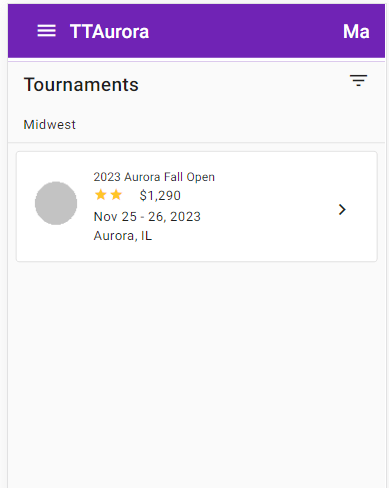
Click on tournament name or the chevron icon and you will be taken to the following Tournament Details screen.
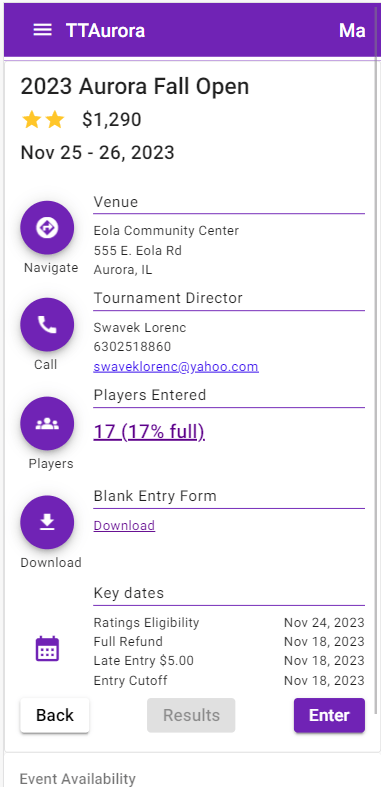
Click Enter to enter the tournament.
First you need to choose your USATT membership option if you are not a member yet or if it is expired. You can see your membership expiration date on this page.
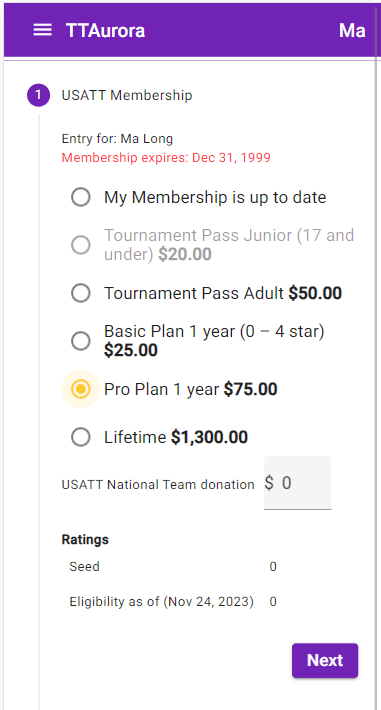
Choose membership option and click Next to see the list of events to enter. Under ‘Events Available to Enter’ there are events listed which you are qualified for. Next to each event, there is a ‘+’ button for entering this event. Click the button to enter.
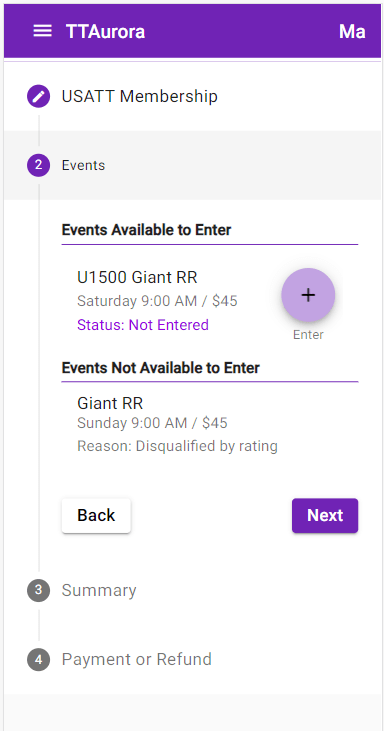
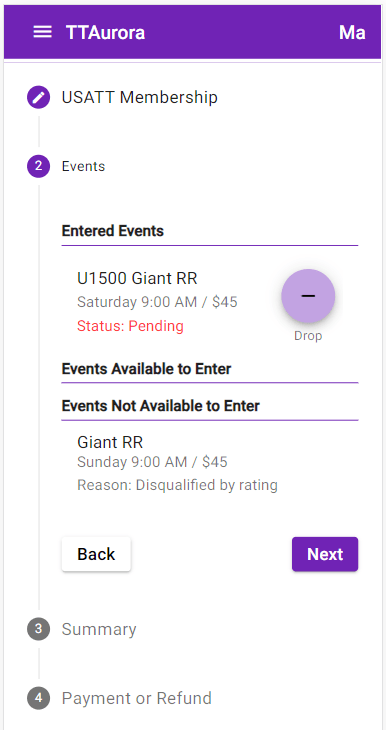
Entered event is displayed under ‘Entered Events’ section with ‘Pending’ status until it is confirmed with payment. If you want to drop this event click the ‘-‘ Drop button. If there are more available events add them the same way. Press Next to move to Summary.
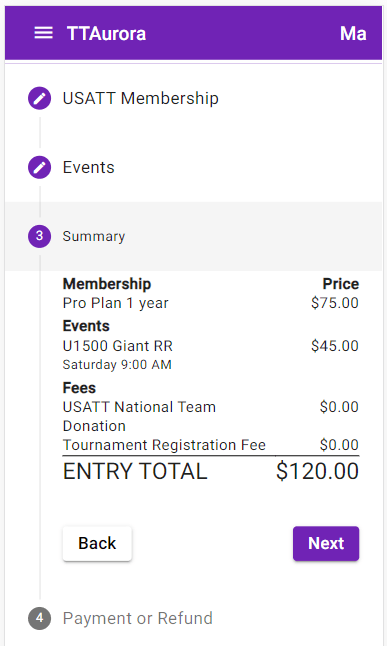
The summary screen shows the summary of all charges and list of events you entered.
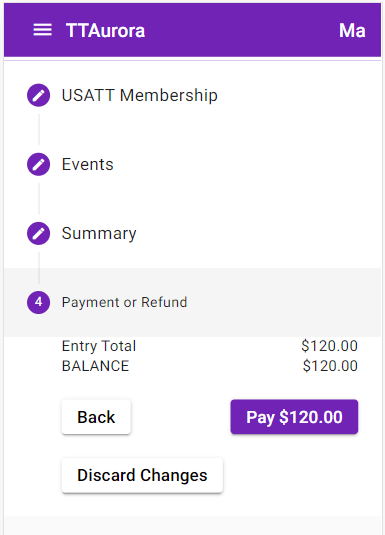
If all looks good click Next. If you need to change something click Back. You should now arrive at ‘Payment or Refund’ step which looks like this.
Press ‘Pay $120’ button or whatever the sum is and you will see Payment popup. If you don’t want to proceed with payment you can click ‘Discard Changes’ button.
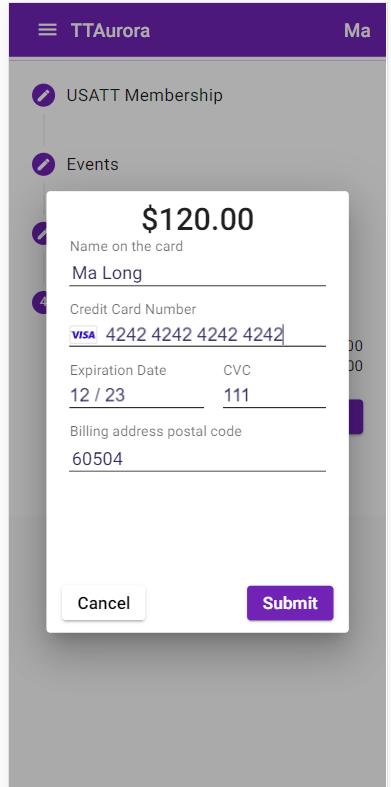
Fill your credit card information and press Submit button to complete the payment. If the payment is successful the dialog will display Success message. If it is not, the same space will show the cause of failure such as ‘credit card is expired’. Press Close to hide the popup. Once the payment is completed you will see the following screen showing your payment.
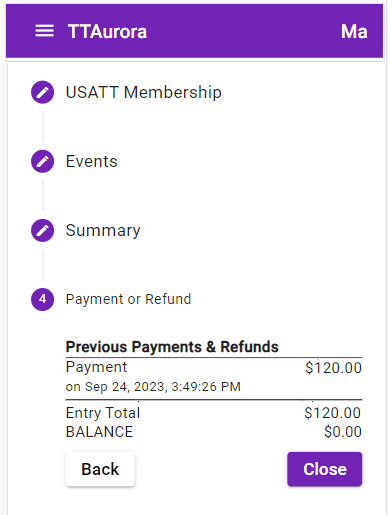
Press Close to close this registration & payment flow and return to tournament details.
Player List
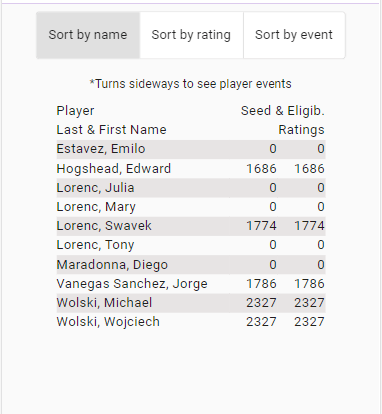
From the Tournament Details screen you can see the list of players who entered by pressing the round ‘Players’ in the column of buttons on the left side of this screen. You should then see this Players screen.
My Registrations
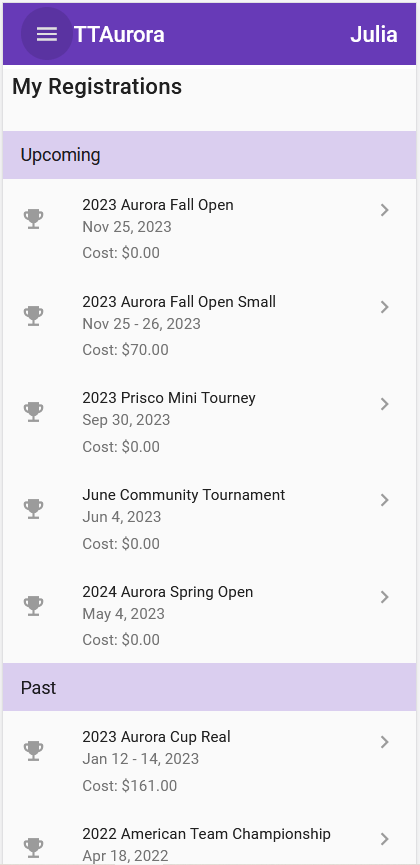
If you want to navigate to your registration quickly there is a new menu item which lists your upcoming and past registrations. It is accessible via ‘My Registrations’ menu item and looks like this:
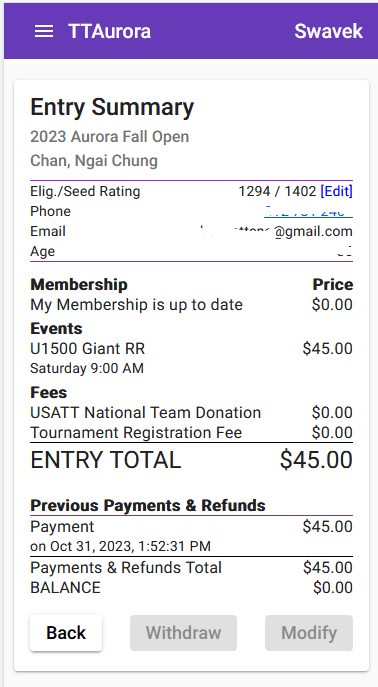
It leads to the screen showing your registration details and allows you to modify your entry or withdraw from the tournament.
 fvttc.org